You are on an important call, and suddenly, you can hear them, but they can’t hear you. Or maybe it’s the other way around. If this sounds relatable, you are in the same frustrating room of SIP (Session Initiation Protocol) communications as millions of others. But the best part is, one-way audio SIP calls are almost solvable.
We have come up with this step-by-step technical guide that’ll help you fix one-way audio effectively and easily. Let’s understand.
What “One-way audio” Actually Means
In SIP-WebRTC scenarios, the signalling (SIP over WSS) can advance while the media (SRTP/RTP) fails to flow in one direction. In layman’s language, it means the call is connected, but the RTP packets (the tiny bits of data that carry your voice) are getting lost while returning. The main culprits are:
- Incorrect or unroutable SDP candidates (wrong IPs/ports in answers/offers).
- Codec or SRTP profile mismatch.
- NAT traversal gap (blocked/missing STUN/TURN or ICE failures).
- PBX “direct media” or re-INVITEs exposing private endpoints.
- Firewalls/ ALGs rewriting or blocking RTP/DTLS.
As an experienced SIP development company, we’ve seen that if signalling is fine, but audio is missing one way, it’s recommended to check ICE, SDP, and RTP paths first.
10-minute Triage Checklist for SIP Audio Troubleshooting
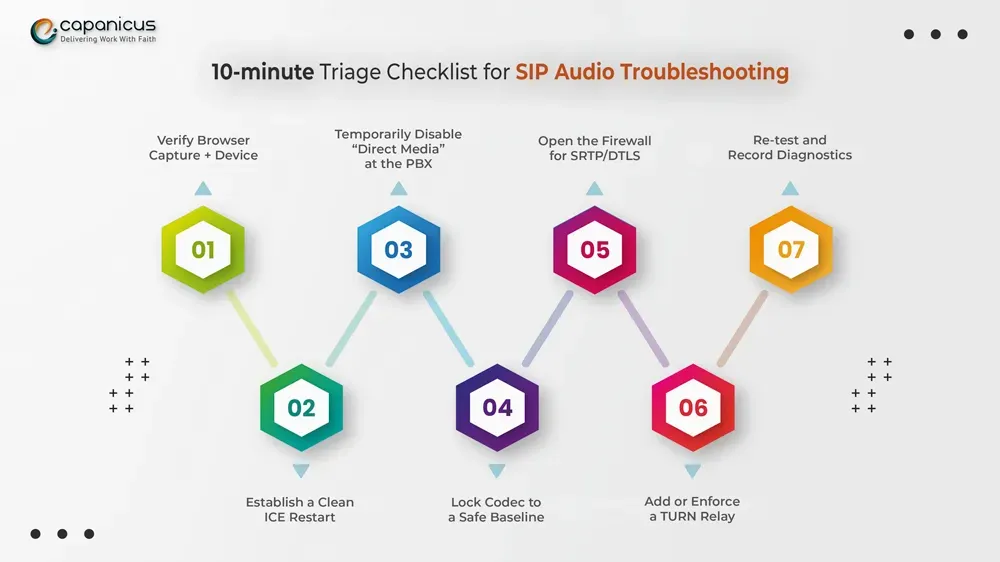
Follow these important checks to quickly identify and resolve common audio, connectivity, and call quality problems.
-
Verify Browser Capture + Device
Validate mic permission/level and run a loopback test. In simple language, “Is your mic working correctly?”
-
Establish a Clean ICE Restart
Replace the call or trigger an ICE start. Make sure at least one public STUN server is configured. Consider it like reconnecting the call path cleanly.
-
Temporarily Disable “Direct Media” at the PBX
In Asterisk/FreePBX, keep RTP anchored to the PBX/proxy to skip leaking private IPs in SDP. In simple terms, let the server manage the call routing to avoid connection problems.
-
Lock Codec to a Safe Baseline
Preferably choose Opus for audio. Ensure SRTP is required on the WebRTC leg and secured on the PBX/trunk side. Basically, allow the call data to pass through the network security.
-
Open the Firewall for SRTP/DTLS
Enable the PBX/proxy’s UDP RTP range bidirectionally or disable SIP ALG on edge routers. Primarily, it allows the call data to pass through the network security.
-
Add or Enforce a TURN Relay
For symmetric NAT/CGNAT users, TURN is crucial. Validate credentials and reachability. Imagine it like a middleman server when a direct connection fails.
-
Re-test and Record Diagnostics
Export browser getStats() and PBX SIP/SDP traces. Confirm ICE “connected”, valid selected candidates, and increasing SRTP packets both ways. In simple terms, test again and check the reports to make sure the issue is resolved.
Why ICE/STUN/TRUN Dictate Success in Internet Calls
ICE, STUN, and TURN help WebRTC and VoIP systems establish stable audio calls between users across different networks. One-way audio issues often appear because of the following scenario:
- The selected pair is asymmetric (meaning one side can reach, the other cannot).
- Return SRTP is blocked by a firewall.
- The PBX advertises private IPs in SDP that the browser is not able to reach.
So, providing trusted ICE servers and a reachable TURN significantly minimizes one-way scenarios, especially for remote agents and mobile users.
Common PBX-side Challenges (Asterisk/FreePBX Examples)
Incorrect PBX configurations often lead to SIP audio as well as connectivity issues in platforms like FreePBX or Asterisk. Settings are often related to SIP/PBX configuration checks, like:
- SRTP/DTLS Aligned end-to-end, or leveraging a proxy to bridge/transcode as required.
- Externaddr/localnet set so SDP includes correct public/private addresses.
- Direct media off while testing, as it keeps RTP on a routable host.
- RTP port range opens on firewalls for both directions.
- Re-INVITE caution to ignore mid-call path changes unless routable.
In true essence, these are the best practices followed in SIP software development and PBX configuration to make sure calls remain stable, secure, and free from any audio hassle.
Mandatory App-side checks (browser/WebRTC)
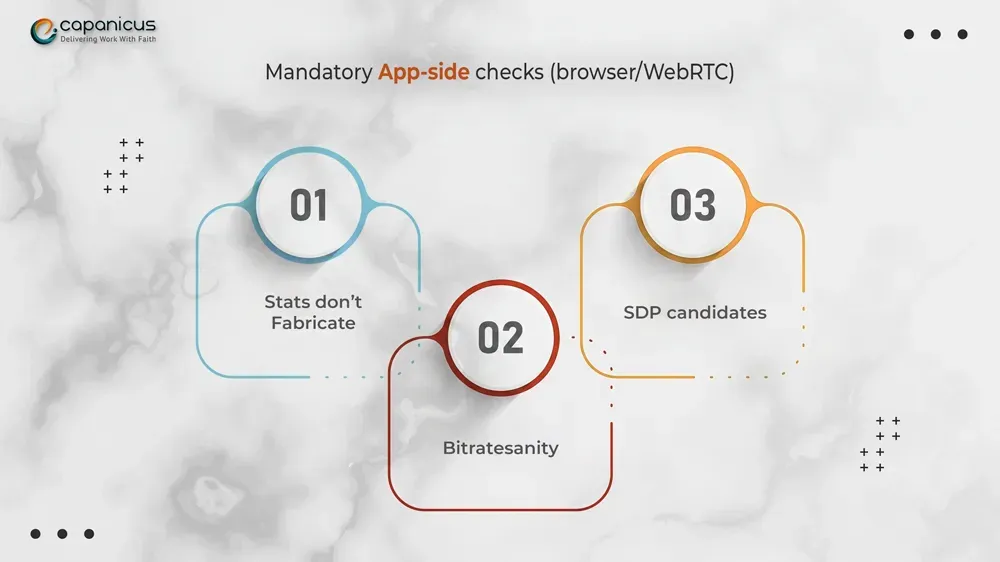
These are basically application-side troubleshooting checks to verify whether audio and media connections are working properly.
- Stats don’t Fabricate: iceConnectionState: connected, rising outbound-rtp and inbound-rtp.
This means checking whether the call connection is rightly established and whether audio data is actively being sent and received.
- Bitrate sanity: if media stalls, temporarily cap Opus (e.g., 24–32 kbps) to rule out congestion.
Minimize audio quality temporarily to check whether poor internet bandwidth is causing the challenge. It means you can lower the audio data usage to test if network congestion is affecting the call.
- SDP candidates: ensure the selected pair involves a public
The system can select a network path that both users can actually access for stable communication.
At the Last When Everything Fails: Get Help From Professionals
You did all you could, but you are still stuck with the same issues of one-sided audio. It usually points towards underlying network challenges like NAT traversal or PBX-level complexities that need deeper technical expertise.
That’s exactly where an experienced SIP software development company makes a real difference. With the right understanding of VoIP architecture, WebRTC behavior, and PBX environments, teams like Capanicus can help catch the root cause quicker and build a more stable, long-term communication setup. At the end, you want your users to experience conversations they’re meant to be: seamless and uninterrupted.
Frequently Asked Questions
- Can a bad internet connection cause a one-way audio issue?
Yes, a slow or unstable connection in general is a factor that tends to create delayed or garbled audio. Yet, it may, in theory, cause a one-way audio issue if the packets in a particular direction are dropped. Usually, the problem is not related to speed but to configuration
- How can a one-way audio be rectified very quickly?
First, power cycle your network. Unplug your modem, router, and phone, and wait 60 seconds before re-plugging them. It is a simple reboot because it resolves the majority of temporary network errors that may cause this problem.
- What is Double NAT, and can it cause one-way audio?
Yes, double NAT occurs when you have two routers on your network (such as an ISP modem/router and your own router). This mixes voice traffic and is probably the cause of one-way audio